
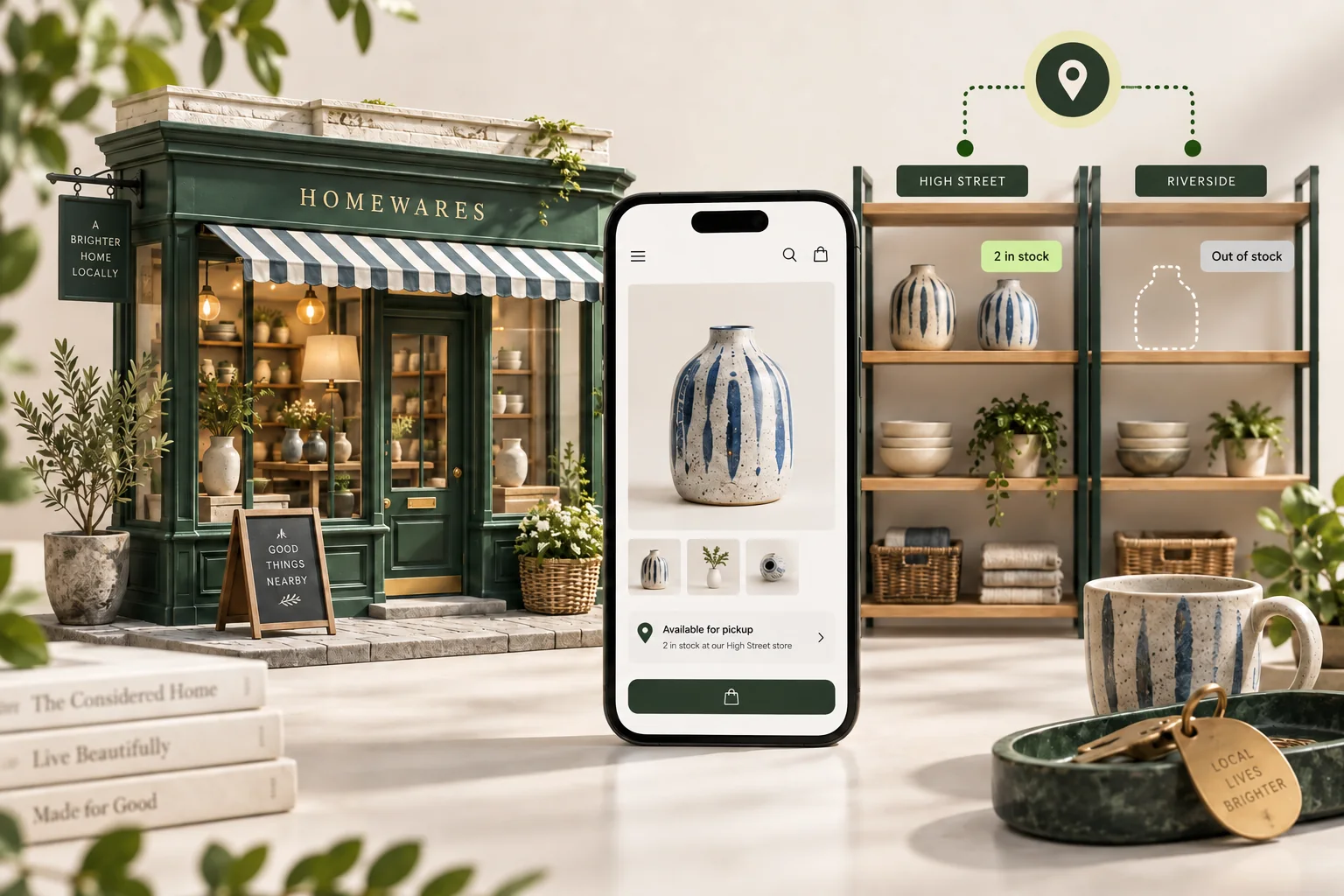
StoreBuilt compared Shopify’s current pickup documentation with our existing click-and-collect operating guide for this article. The distinction that matters before purchase is whether the product page can explain availability and whether the customer’s actual basket qualifies at checkout. One reassuring label cannot establish both outcomes.
When Shopify pickup availability is not showing, UK retailers should separate the storefront component, the selected variant and the location configuration before changing delivery settings. This guide focuses on finding the missing or incorrect pre-purchase message. For store queues and counter handover after an order arrives, use our separate operations guide. The worked scenario below is illustrative, not a client case study.
In this guide
- Define where the availability disappears
- Build a location and variant evidence sheet
- Check native setup before the presentation
- Trace changes after selecting another variant
- Keep transfer availability distinct from ready stock
- Reproduce checkout in the correct country context
- Work through an illustrative homeware example
- Use a small but meaningful acceptance matrix
- Release with the shop team watching
- StoreBuilt point of view
Define where the availability disappears
Capture the affected product URL, selected option, visitor country and the exact message. Is the pickup section absent, does it say unavailable, or does it list a shop that the customer cannot choose at checkout? These observations point to different layers. Include a screenshot of the full product purchase area so the reviewer can see which variant and price are active.
Start with a single product in an empty basket, then repeat with the customer’s reported basket where appropriate. A product-level message describes one item; a basket introduces quantities and other products. Do not turn pickup off and on across every location before preserving the original evidence. That can erase the contrast between a configuration issue and a rendering fault.
Build a location and variant evidence sheet
List the exact variant identifier alongside the relevant shop location, inventory observation and pickup configuration. Avoid a single total-stock number. A retailer can have many units elsewhere in the business without having the selected option ready at the requested shop. Note when the inventory observation was made, especially if the same stock is actively selling in person.
Ask the store team to confirm any practical restriction that is not represented online. A display unit, damaged item or stock awaiting receipt may not be available to hand over. This is an operational reconciliation task rather than a reason to change quantities speculatively. Keep the intended service promise separate from the current system state until the two have been checked.
| Observation | Evidence needed | First owner |
|---|---|---|
| Pickup section absent | Theme and product template | Ecommerce team |
| One variant unavailable | Variant and location stock | Inventory team |
| Wrong shop displayed | Location list and visitor context | Ecommerce team |
| Product looks eligible, basket fails | Full basket and checkout message | Operations and developer |
| Collection estimate seems too short | Transfer route and preparation process | Retail operations |
Check native setup before the presentation
Shopify’s pickup setup guide describes location-level activation. Its product-page guidance also requires suitable theme support, a physical product and stocking at a pickup location. Verify these prerequisites on the affected variant rather than assuming every product shares the same configuration.
Use a known working physical product as a control at the same location. Compare only the settings relevant to the symptom. If the control also loses its availability section in a new theme, the presentation deserves attention. If the control works and one product fails, inspect that product’s setup before making store-wide changes. This preserves a useful diagnostic boundary while the investigation proceeds.
Trace changes after selecting another variant
Open the product directly, then change its size or colour. Record whether the title, price, image and pickup message remain aligned. A pickup statement that belongs to the initial variant can become misleading even when it is technically visible. Include both a normal click sequence and a fresh load of the selected-variant URL if your storefront exposes one.
Shopify’s developer guide to pickup availability connects the rendered information to the selected variant and its update flow. A developer should follow that path in the actual theme. Avoid pasting a second availability widget over the first: duplicate components can disagree and make the purchase area harder to understand.
Contact StoreBuilt with the product, location and variant that reproduce the missing pickup message.
Keep transfer availability distinct from ready stock
A pickup offer may depend on moving stock between locations. Shopify documents transfer configuration and adjusted pickup estimates. Inspect the actual route and exclusions in your store before promising collection on the same timetable as shelf stock. Availability through a transfer should not be casually described as an item waiting at the counter.
Prepare customer wording with the store team. Explain when the buyer will receive confirmation that collection is ready and which location they should visit. If a support adviser has to explain a hidden transfer after every order, the pre-purchase wording is incomplete. Resolve that expectation problem alongside the technical message, while keeping the documented processing estimate consistent with how the shop operates.
Reproduce checkout in the correct country context
Use the customer’s actual country context when investigating missing locations. Shopify states that checkout shows pickup locations in the customer’s country. An overseas session is therefore an unsuitable control for a UK collection journey. Record the selection in the test sheet rather than relying on the tester’s physical location or assuming a browser always uses the expected country.
Where an exact checkout error appears, preserve its wording and consult the current troubleshooting guidance. Avoid applying a generic shipping-rate workaround to every missing widget. A product-page section and a checkout delivery error have different acceptance tests. If a custom pickup app is involved, record that fact and use the provider’s current instructions for its part of the flow.
Work through an illustrative homeware example
Imagine a retailer with a London shop and a separate stockroom. A blue vase is on the shop shelf, while the cream version is held in the stockroom. The initial product selection shows a collection message, but changing the colour leaves that message unchanged. The customer reasonably assumes both options have the same collection timing.
The investigation needs two checks: whether the cream variant has a valid pickup or transfer route, and whether the theme refreshes the message after selection. Correcting only the wording would conceal the stale interaction; correcting only the script would not create a viable transfer process. The example demonstrates why an availability issue often needs both an ecommerce owner and a retail operations owner.
Use a small but meaningful acceptance matrix
Choose test products that represent real fulfilment differences. Include stock held at the shop, stock available only through a configured transfer and a genuinely unavailable variant. Where the catalogue permits mixed baskets, test the relevant combinations in the current store configuration rather than extrapolating from a single-product page. Platform capabilities and activated features should be verified for the store.
| Scenario | Product-page check | Checkout check |
|---|---|---|
| Stock at pickup shop | Correct location and estimate | Intended shop selectable |
| Different variant | Message follows selected option | Correct option retained |
| Transfer required | Appropriate availability wording | Estimate reflects the route |
| Unavailable item | No unsupported promise | Outcome matches configuration |
| UK visitor | Relevant local information | UK pickup context maintained |
| Mixed basket | Each item described accurately | Whole basket outcome verified |
Release with the shop team watching
For a theme correction, retain the previous version and name the route back to it. For a settings correction, record the original values and affected locations. Have someone from the shop review the final customer-facing promise before publication. They should understand what an order with that promise requires, including any transfer preparation or exception handling.
After release, repeat the same product and basket tests on mobile. Check that location details are readable and that the availability drawer or link works without covering the purchase controls. Track support contacts that identify a specific mismatch, but do not treat a quiet support queue as proof that every combination works. Keep the test matrix for future theme or inventory changes.
StoreBuilt point of view
Pickup availability is a promise about a place, an item and a time. A green message is useful only when those three agree with the order journey. Our preference is to fix the narrow data or presentation cause and then validate the promise with the team responsible for handing over the product.
Continue with our click-and-collect operations guide or Shopify development services. Contact StoreBuilt to investigate a pickup journey that gives customers conflicting information.