
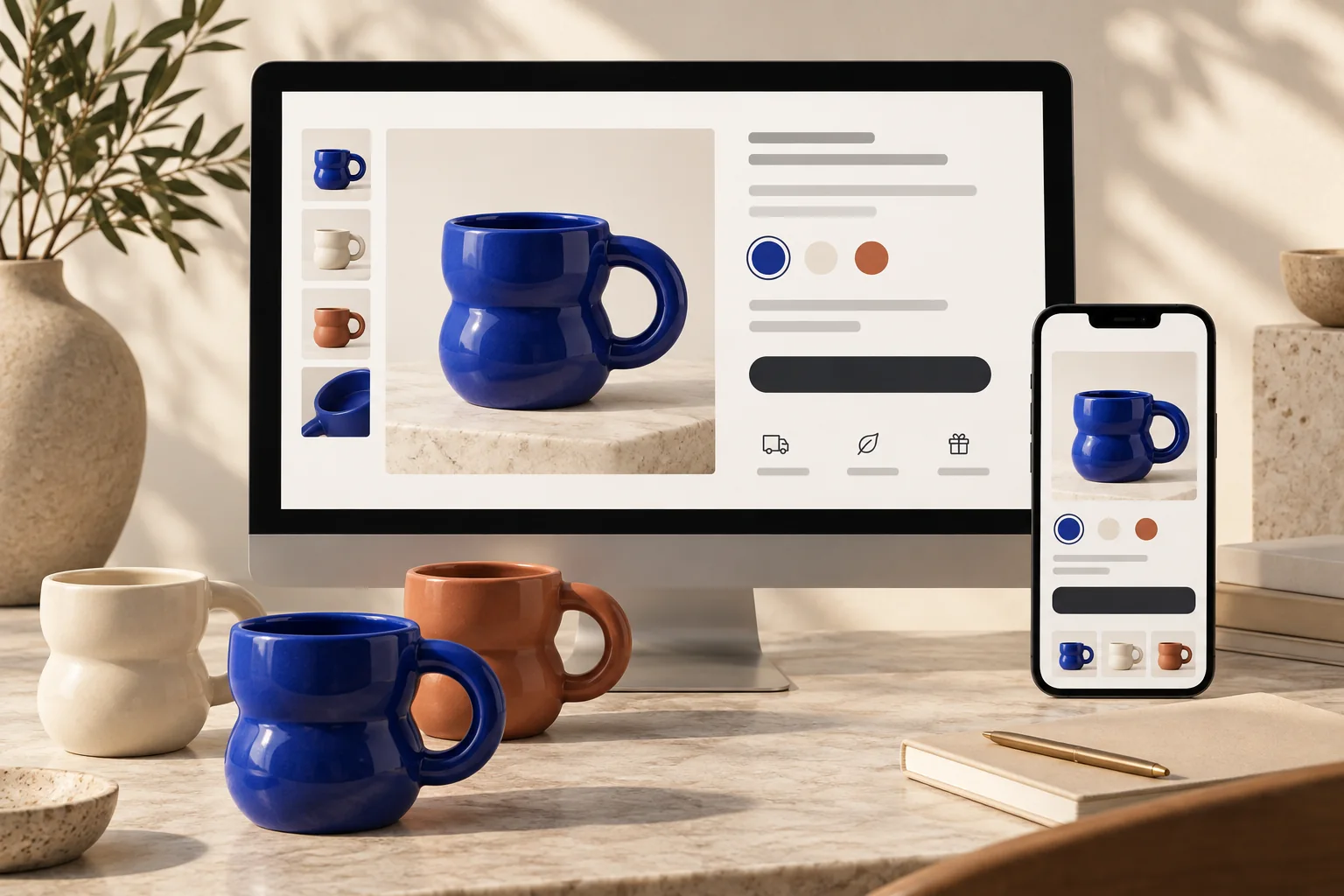
In reviewing StoreBuilt’s product-page guidance, we found that colour selection is too often treated as a visual detail. It is part of the purchase decision: the shopper needs the selected option, photograph, price and basket line to agree. Our preferred diagnosis follows those states separately so that an attractive image fix cannot hide an ordering problem.
A Shopify variant image that does not change can originate in product data, theme behaviour or an app that modifies the gallery. The quickest reliable investigation begins with one product and a reproducible selection sequence. This guide is written for UK ecommerce teams coordinating catalogue and development work; the examples are illustrative, with no claimed client conversion uplift.
In this guide
- Define exactly what should change
- Check the variant assignment first
- Compare initial load with interaction
- Separate a gallery issue from a purchase issue
- Test app interactions safely
- Work through an illustrative catalogue case
- Specify colour galleries as a separate enhancement
- Run an acceptance matrix before publishing
- StoreBuilt point of view
Define exactly what should change
Write down whether selecting a colour should change the leading image, filter the whole gallery or also change imagery in a quick-add panel. These are different requirements. A merchant expecting a complete colour gallery might interpret the normal single-image assignment as a fault, while a developer assumes that moving to the first matching image is sufficient.
Also define the reverse interaction. Clicking a photograph may simply let the shopper inspect it; it does not necessarily select the variant shown. If your store deliberately connects these actions, the selected option and basket must update together. Explain that behaviour visibly. A model wearing a different colour in a lifestyle image should not silently change the customer’s purchase choice.
Check the variant assignment first
Open the affected product and inspect the image assigned to every relevant variant. Shopify supports an individual image assignment for each variant; adding photographs to the general product gallery is a different action. The official variant image instructions describe that setup and its limits.
Start with two clearly different colours, such as cobalt and ivory. If the product has colour and size options, inspect multiple sizes within each colour. An image assigned only to one size can create an intermittent-looking failure as the shopper changes both selectors. Save the correction, reopen the record and confirm the assignment persisted before moving on to the theme.
| Observation | First place to investigate | Evidence to capture |
|---|---|---|
| Every colour shows one photograph | Variant image assignments | Two variant records and their images |
| One size fails within a colour | Incomplete mapping across combinations | Colour and size sequence |
| Refresh works but switching fails | Interactive theme or app update | Before and after refresh |
| Main page works, quick add fails | Separate quick-add implementation | Both interfaces on the same item |
| Correct photo, wrong basket option | Product form selection state | Actual basket line details |
Compare initial load with interaction
Load a direct link to a selected variant, then test changing the option without reloading. If the initial render shows the right photograph but interaction leaves the previous one visible, the data may be available while the gallery update is failing. A developer should inspect the variant-change event, section replacement and gallery state without assuming a universal fix across themes.
Repeat the test after selecting another size and returning to the original colour. Record the complete sequence. Bugs often depend on the order of actions, especially when a theme replaces part of a product page after selection. A screenshot of the final wrong photograph is less useful than a short recording showing how the page reached that state.
Separate a gallery issue from a purchase issue
Add the selected variant to the basket and inspect its options, quantity, price and image. Do not submit a paid order merely to establish the cart state. If the basket contains the correct variant but the page image was wrong, the defect is primarily a misleading presentation. If the basket contains the previous variant, treat the purchase-selection issue as a more urgent defect.
Check the cart drawer and full cart separately where both exist. A drawer may render an older image while the underlying cart line is correct. The reverse can also occur if a custom product form sends the wrong identifier. Developers should verify the data being submitted and rendered rather than changing an image URL alone. Our Shopify development service can scope these connected theme behaviours.
Contact StoreBuilt with an affected product link and the exact colour-and-size sequence that fails.
Test app interactions safely
List apps and custom code that influence swatches, options, bundles, galleries and sticky purchase controls. More than one component may listen for a selection change. Investigate on a duplicate theme and change one relevant integration at a time where the app supports theme-specific controls. Record what you changed so the comparison remains interpretable.
Do not uninstall an app as a casual first test. Some apps store product configuration or run outside the theme, and removal may affect other journeys. If a clean theme comparison works, that narrows the fault to the customised experience but still does not identify a specific app. Use the comparison to guide inspection, then restore necessary integrations and repeat the failing sequence.
Work through an illustrative catalogue case
Consider a ceramics shop selling the same mug in three colours and two sizes. The cobalt small mug has an assigned image, but the cobalt large mug does not. Customers who start with the small size see the expected photograph; those who change size before colour report inconsistent behaviour. The visible symptom resembles a JavaScript fault even though the mapping is incomplete.
A controlled investigation checks all six combinations, records the assignments and corrects the missing data. It then tests the main product page, quick add and basket. If the issue remains in one interface, that interface gets a separate development ticket. This sequence avoids making a global theme change to compensate for a limited catalogue mistake. It is a worked example, not an account of client work.
Specify colour galleries as a separate enhancement
If the business needs five photographs per colour, write a gallery requirement rather than calling the single assigned image broken. Decide whether lifestyle photographs are shared, whether video remains visible for every colour and what happens when one colour has fewer images. These choices affect accessibility, performance and content maintenance as well as presentation.
Use the Shopify product media overview to distinguish supported media types from the theme’s display rules. Ask how editors will maintain the mapping after new colours arrive. A clever gallery that relies on undocumented naming conventions can become fragile when another person uploads images. Include the editorial workflow in the implementation brief.
Run an acceptance matrix before publishing
A single successful desktop click does not establish that the fix is complete. Use a small representative matrix and include the interface that originally failed. Keep the expected result explicit so the tester is not merely checking that something moved.
| Test | Expected agreement | Common detail to watch |
|---|---|---|
| Direct variant link | Selected option and leading image | Campaign links to a non-default colour |
| Colour then size | Both selections and basket item | Missing mappings on one size |
| Size then colour | Same final outcome | Sequence-dependent updates |
| Quick add | Options and resulting cart line | Separate modal code |
| Mobile product page | Image, selection and purchase control | Sticky controls and gallery position |
| Browser back navigation | Restored selection remains clear | Stale UI after history navigation |
Retain a short record of the successful checks with the theme version and release date. If the correction changes shared gallery code, include another product template and a product without variants. This guards against a fix that works only because the sample product has unusually simple data.
StoreBuilt point of view
The right outcome is agreement between what the customer sees and what the store adds to the basket. Start with variant data, trace the interaction and verify the purchase state. Treat a richer colour gallery as a separate design decision with its own maintenance plan. That approach produces a smaller, more understandable fix and a more dependable product page.
Contact StoreBuilt to diagnose the selection journey and release a tested correction.