
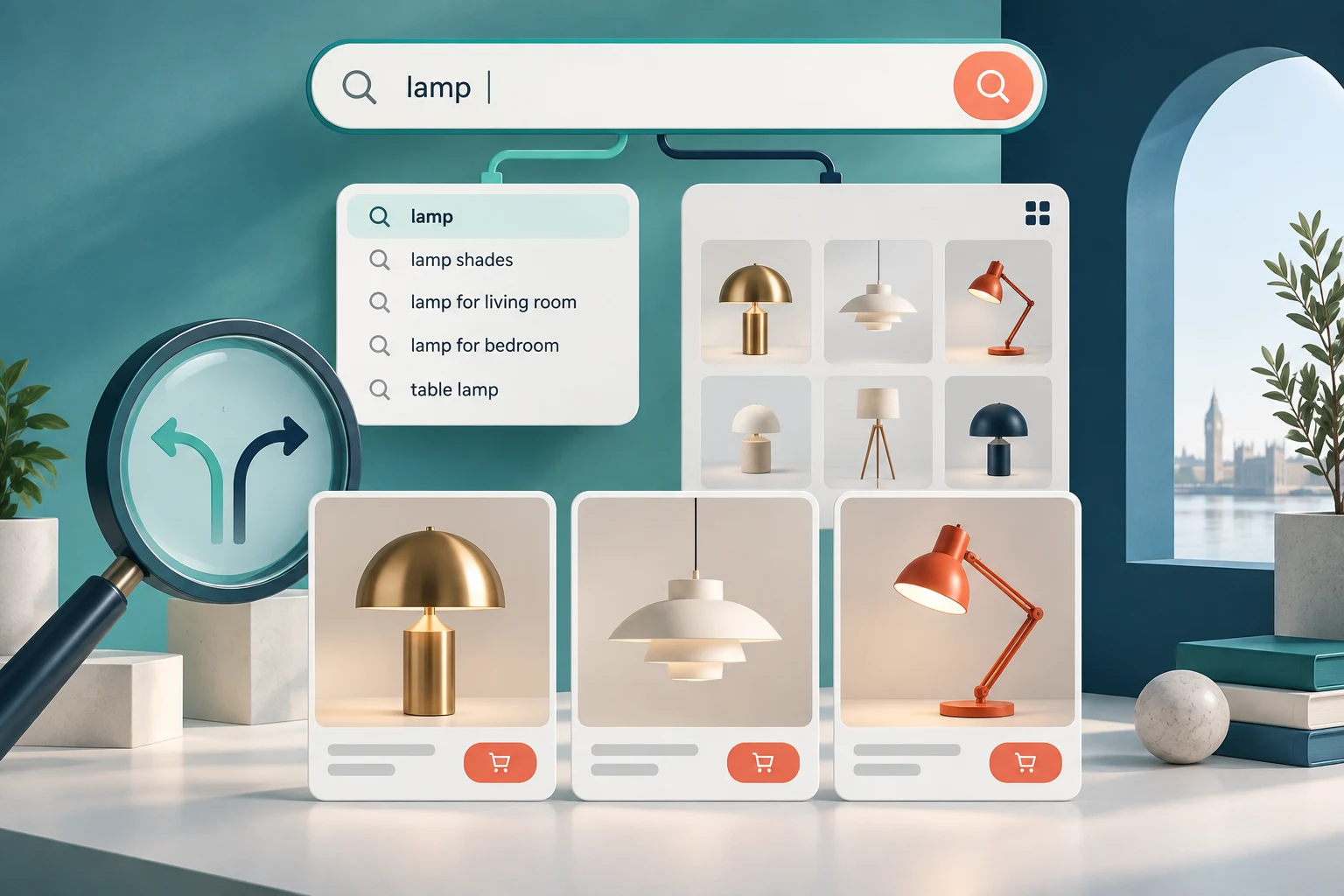
StoreBuilt reviewed Shopify’s predictive-search guidance and the search-detection checks in our own storefront audit implementation for this guide. The useful distinction is between identifying a search feature and proving that customers can use it. A dropdown can be present while the wrong term reaches the results page, a mobile overlay hides the suggestions, or a product card points somewhere unexpected.
Shopify predictive search troubleshooting should begin with one reproducible customer task. “Search is broken” is too broad to assign or verify. “Typing brass lamp on mobile shows a product, but pressing Enter loses the phrase” gives the team something concrete to investigate. The examples below are illustrative acceptance scenarios, not claimed client results.
Contact StoreBuilt for a focused review of the search journey and its theme integration.
Table of contents
- Separate the two search experiences
- Build a small query evidence set
- Establish which component owns the result
- Check data without rewriting the catalogue blindly
- Make the mobile panel testable
- Work through a concrete mismatch
- Release with a regression matrix
- StoreBuilt point of view
Separate the two search experiences
Predictive search offers suggestions while someone types. The full results page handles the submitted search. They are related, but the customer does not necessarily see the same number or type of results in both places. A short suggestion list should not be judged as if it were the entire catalogue.
Shopify’s predictive-search documentation explains that the feature needs a compatible published theme, has a limited default result set and has language-specific behaviour. Use those constraints to define expectations before diagnosing missing suggestions. A product being absent from a small panel is not, by itself, proof of an indexing failure.
Write separate acceptance statements: the dropdown helps the shopper recognise a useful destination; pressing Enter preserves the intended search; selecting a product opens the correct item. This prevents one successful click from being treated as proof that the whole journey works.
Build a small query evidence set
Choose queries that reflect buying tasks rather than an arbitrary list of products. Include a common category word, an exact product name, a variant description, a term taken from a support enquiry and a phrase expected to return nothing. Record the expected destination and why it is appropriate.
For a UK lighting shop, the set might include “desk lamp”, a named pendant range and “brass bedside”. Do not assume every phrase should return the same result in the same position. The purpose is to reveal whether customers can make progress, not to enforce a merchandiser’s preferred ordering for every query.
| Query case | Evidence to capture | What it helps distinguish |
|---|---|---|
| Exact product name | suggestion and destination | basic product discovery |
| Broad category | result types and all-results link | useful narrowing |
| Variant description | chosen item and visible options | product versus variant intent |
| Unexpected phrase | empty state and recovery route | graceful failure |
| Same term on mobile | keyboard and panel recording | layout versus relevance issue |
Keep this set with the release ticket. After a fix, repeating exactly the same searches is more informative than trying a different convenient product and declaring success.
Establish which component owns the result
Check the published theme and whether an app supplies search behaviour. A preview theme may have different code or app settings. A header search can also differ from a dedicated search page added by another tool. List those surfaces before editing anything.
Ask a developer to inspect the request and the rendered response for a failing query. If the expected product is returned but not shown, the issue may sit in presentation. If the browser submits a different term, changing product descriptions is unlikely to help. If the request itself fails, record that failure separately from relevance.
This is also a useful boundary for support. A theme supplier needs evidence about its interface; a search provider needs the query and response; a merchandiser needs the product fields involved. Sending everyone the same vague screenshot encourages circular troubleshooting and unnecessary changes to working parts of the store.
Check data without rewriting the catalogue blindly
Confirm that the intended product is actually available on the relevant storefront and that its customer-facing name matches the expected buying task. Review the exact product and variant relationship. A colour name attached to one option should not be confused with a separate product that happens to share that word.
Avoid stuffing titles with every possible search phrase. That can make cards harder to scan and damage clarity elsewhere. If the evidence points to missing or inconsistent terminology, fix a small, coherent group of records and rerun the query set before expanding the change.
Treat search settings as part of the evidence too. Record the previous state so the team can understand what changed. For the wider investigation across navigation, filters and catalogue language, use the Shopify product discovery audit. This guide concerns the narrower autocomplete-to-results handoff.
Make the mobile panel testable
Open the search field on a real narrow viewport with the keyboard visible. Can the shopper still identify a result and reach the all-results route? Does the panel scroll independently when needed? Does an underlying menu or sticky banner overlap the suggestions?
Try typing quickly, deleting the phrase and entering a new one. An older response should not replace newer results after a slow connection. Select a suggestion while the panel is changing and check that the intended destination opens once. These are interaction failures even when every product in the response is relevant.
Use keyboard navigation on desktop as well. Focus should remain visible and the panel should have a predictable way to close. The merchant’s acceptance review can describe the expected experience; a developer should choose the appropriate accessible implementation rather than adding improvised key handlers without checking the existing theme.
Work through a concrete mismatch
Consider an illustrative lighting retailer whose dropdown shows a brass lamp, while submitting the phrase opens a generic lighting page. The team initially proposes retagging the range. A better first check is the actual submitted URL: did it preserve “brass lamp”, substitute a suggestion, or route through an app-specific search page?
Next, repeat the query in the same locale without selecting a suggestion. Then open the product suggestion directly. These three routes distinguish input handling, query submission and product navigation. If only submission fails, the investigation can stay focused on that handoff.
The acceptance ticket should name the expected behaviour without promising identical rankings: the typed term survives submission, the returned page represents that term, and the product card links to the intended product. This makes the repair reviewable even if the search provider’s ranking changes later.
Release with a regression matrix
Keep the release small enough to explain. Changing the search provider, header interface and product naming at once makes it difficult to attribute a result. Start with the identified failure and preserve evidence from before and after the change.
| Test | Pass condition | Owner |
|---|---|---|
| Submit typed query | phrase retained in destination | developer |
| Select product suggestion | intended product opens | QA reviewer |
| Empty results | useful recovery route remains | UX owner |
| Change locale | behaviour matches supported experience | ecommerce team |
| Rapid input and deletion | no stale result takeover | developer |
| Keyboard and phone | reachable, visible controls | QA reviewer |
After release, watch search exits and useful product visits alongside support reports. More searches are not automatically better: customers may search repeatedly because the first attempt failed. If measurement is limited, maintain the representative task set and review new failure reports against it before adding another tool.
StoreBuilt point of view
Search quality is the combination of relevant data and a trustworthy interaction. StoreBuilt would rather prove that a shopper can complete five important search tasks than celebrate the presence of an autocomplete widget. Preserve the query, explain the result and make recovery possible.
For implementation help, explore our Shopify design and development service or Contact StoreBuilt with the failing query and expected product.