
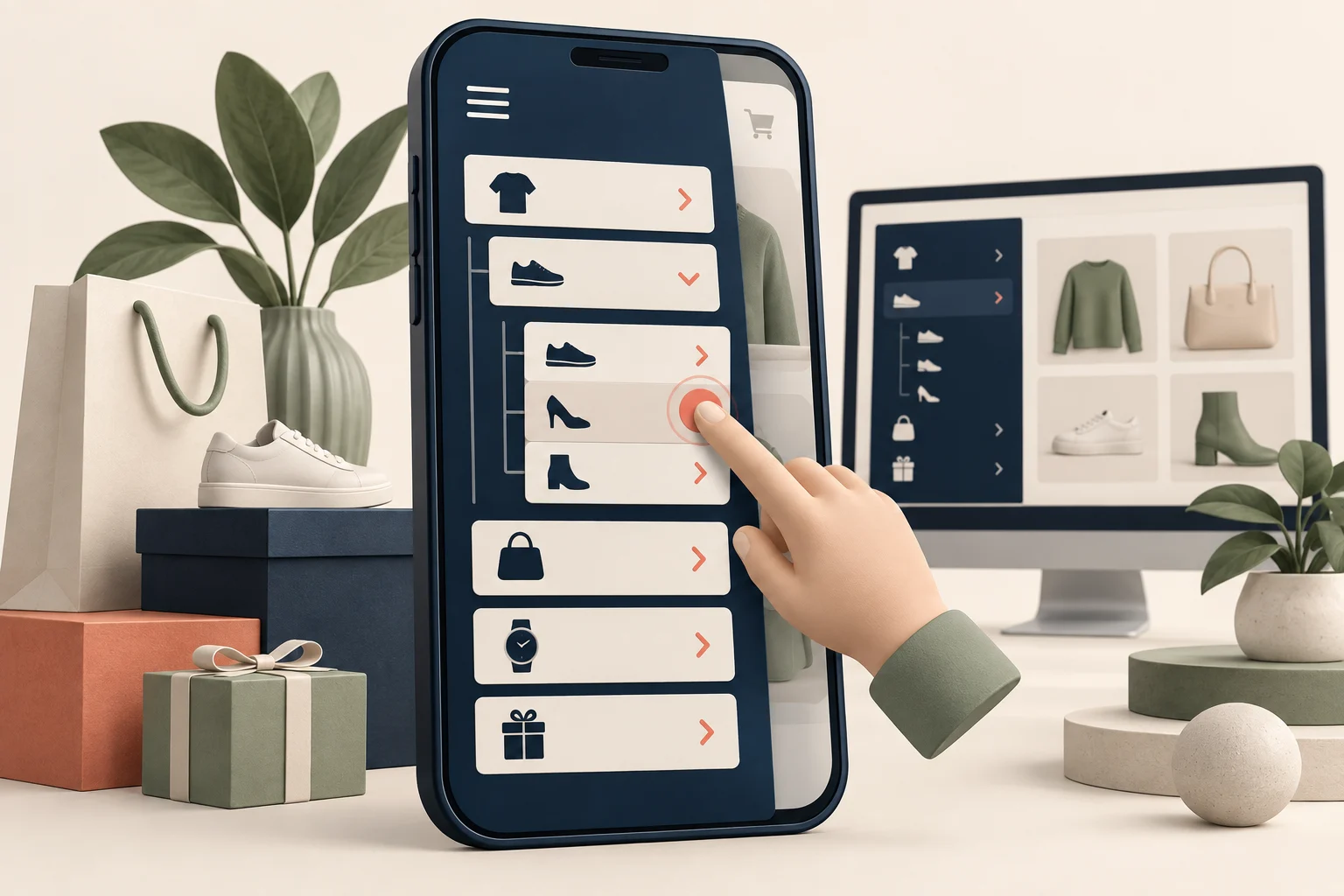
StoreBuilt reviewed Shopify’s current menu guidance alongside the navigation and accessibility coverage in our own article library for this guide. The gap is practical: a screenshot of an open drawer cannot establish whether a customer can actually reach a category. The useful check follows the tap from the opening button through the submenu to a working destination.
A Shopify mobile menu not working can mean several different things. The drawer might never open, a parent category might redirect immediately, or a transparent layer might intercept the next tap. UK ecommerce teams should record the exact failure before changing code. Each symptom points to a different part of the journey, and a broad replacement can introduce a second problem.
Contact StoreBuilt with the affected page, device and category path for a scoped navigation review.
Table of contents
- Describe the failed customer task
- Check the menu data and theme assignment
- Separate parent links from expansion
- Inspect overlays and scroll behaviour
- Reproduce a category dead end
- Make the repair accessible
- Use a release acceptance matrix
- Measure recovery without guessing
- StoreBuilt point of view
Describe the failed customer task
Write a short reproduction that another person can follow: open the homepage on a phone, tap Menu, expand Home, then select Lighting. Record whether the problem occurs before the drawer appears, during expansion or after selecting the destination. Include the published theme, browser and whether a consent banner or chat panel was visible.
Try a second starting page, such as a product or collection. Headers sometimes change with page context or scrolling. A menu that works at the top of the homepage may fail after a sticky header takes over. Preserve both observations rather than describing the issue simply as an intermittent mobile bug.
Use a real phone as well as responsive browser mode. The simulated viewport helps with layout, but physical tapping, browser toolbars and the on-screen keyboard can expose interactions that a mouse does not. A short recording is often more useful than several disconnected screenshots.
Check the menu data and theme assignment
Confirm that the header is using the intended menu. A beautifully arranged navigation list in the admin is irrelevant if the published header references an older list. Compare the visible labels and destinations with that assigned structure, including nested children and links to unpublished or removed collections.
Shopify’s drop-down menu guidance explains how nested menu items and parent behaviour work. Use it to check configuration before treating every unexpected tap as a JavaScript failure. Theme-specific navigation features can still require the theme developer’s own documentation.
| Visible symptom | First area to inspect | Useful comparison |
|---|---|---|
| Wrong category labels | assigned menu | admin list versus live header |
| Drawer never appears | opening control and scripts | fresh page versus scrolled page |
| Parent redirects | parent link behaviour | expected expand versus navigate |
| Drawer opens then freezes | overlay and scroll handling | other panels closed versus open |
| One child returns an error | destination URL | direct visit to the same link |
Do not casually edit a shared navigation list while testing a draft theme. The theme may be a copy while the underlying menu is shared store data. Record what the test will change and use an appropriate test menu when the experiment needs a different structure.
Separate parent links from expansion
A parent labelled Furniture can have two legitimate jobs: open a submenu or take the shopper to all furniture. The interface must make those jobs understandable. A single touch target that sometimes expands and sometimes navigates is difficult to use and difficult to test.
Decide the expected behaviour before adjusting the link. Where the documented theme pattern uses a parent purely as an expansion control, follow that pattern. If customers still need the parent collection, include an explicit View all furniture destination in the submenu. Do not apply a hash link to every parent without considering how the theme works.
Use meaningful labels for deeper categories. Repeating Shop at several levels makes orientation harder, especially when the drawer only shows one level at a time. A clear back control and current category name help the shopper recover without closing the menu and starting again.
Inspect overlays and scroll behaviour
When a control appears correct but ignores taps, check what is above it. A closed search panel, consent interface or cart backdrop can leave an invisible layer across the header. Raising the menu’s stacking order at random may hide the symptom while breaking another component.
In a duplicate theme, disable one suspected component at a time and repeat the exact failed task. If the menu recovers, restore the component to confirm the relationship. The useful evidence is a repeatable change in behaviour, not merely the fact that an app was recently installed.
Also check what happens to scrolling. Opening the drawer should not leave the background page moving in an uncontrolled way, and closing it should not leave the entire storefront locked. Rotate the device, close the menu and reopen it to expose state that survives beyond its intended lifetime.
Reproduce a category dead end
Consider an illustrative interiors store with a Home parent and Lighting and Rugs children. A shopper taps Home and lands on the broad collection before seeing the children. The merchant assumes the submenu data is missing, although it is present in the admin.
The investigation compares the published header’s assigned list with the intended interaction. If the parent is supposed to expand, the repair should make that action reliable and provide a separate route to all home products. If it is supposed to navigate, the expansion control needs a distinct, understandable target.
The acceptance result is concrete: a shopper can reach Lighting from the homepage, return to the menu and choose Rugs without guessing where to tap. This is an example for diagnosis, not a claim about a StoreBuilt client or a measured conversion increase.
Make the repair accessible
A functional menu needs more than touch support. Check that keyboard users can reach the opening control, move through available links, close the panel and continue on the page. Visible focus should remain easy to locate against both the header and drawer backgrounds.
For custom work, review Shopify’s accessibility guidance. Labels and expanded states should communicate what controls do. Do not announce a control as a destination link when its actual job is only to expand a category.
Test long category names and text enlargement. A menu may pass with short sample labels but clip real merchandising names. The remedy should accommodate content rather than relying on a fixed height that happens to fit today’s category list. Our accessibility remediation guide covers broader prioritisation beyond this header-specific task.
Use a release acceptance matrix
Keep the review small enough to repeat, but cover the states that caused the failure. A release owner should be able to identify the exact theme preview tested and the categories used. Save that record with the change so another team member can verify the same route after publication.
| Customer action | Required result | Release evidence |
|---|---|---|
| Open from a product page | drawer appears once | phone recording |
| Expand a parent | correct children appear | selected category path |
| Choose View all | intended collection loads | destination check |
| Close after scrolling | normal page scrolling returns | before and after interaction |
| Use keyboard controls | focus remains visible and usable | complete keyboard journey |
| Open with other widgets present | controls remain reachable | consent and chat state noted |
Publish during a period when someone can immediately repeat these checks on the public store. A preview passing is valuable, but production can include different widget settings or cached assets. Confirm the fix from a fresh session before declaring the incident resolved.
Measure recovery without guessing
Record the original failure rate only if you have reliable evidence. Support tickets, session recordings and task testing can establish a problem without providing a defensible percentage. Do not convert a handful of successful taps into a claim about revenue improvement.
After release, review category reachability, related customer complaints and any new navigation issues. If analytical events are available, compare the same journey and device group rather than all store traffic. Campaign mix and product demand can change independently of the menu repair.
For maintenance planning, document which component owns opening, expansion and closing. That makes the next theme update easier to assess. A small, understandable implementation is more maintainable than a series of overlapping scripts added to counteract one another.
StoreBuilt point of view
The right mobile menu is the one that lets customers reach the intended products and recover from a wrong turn. StoreBuilt would prioritise clear parent behaviour, dependable closing and complete category journeys over decorative drawer effects. The release standard is a finished task, not an animated icon.
Explore Shopify design and development or Contact StoreBuilt to fix the specific navigation path your customers cannot complete.