
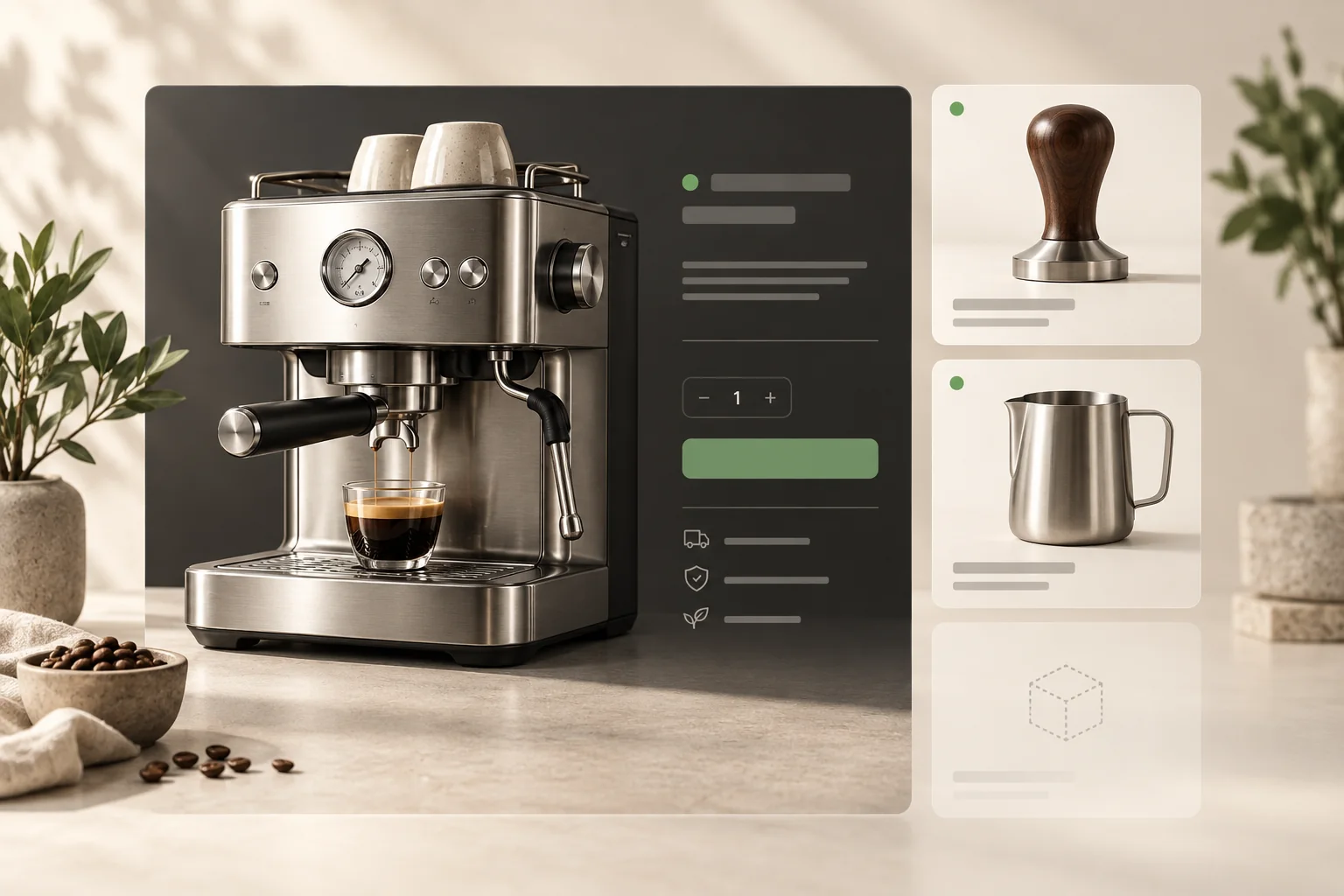
Reviewing StoreBuilt’s merchandising guidance reinforces one practical lesson: a saved recommendation is an instruction, not proof of a visible customer experience. The chosen accessory still has to be eligible, the product page has to request it and the theme has to display it. Our approach is to inspect those layers in that order before changing the design.
This guide addresses Shopify complementary products not showing when a UK ecommerce team has already selected the intended accessories. It is a troubleshooting process rather than a broad cross-selling strategy. Use one parent product and one candidate accessory to establish a known working case, then expand carefully. Worked examples below are illustrative, not claims about client results.
In this guide
- Confirm which recommendation experience you mean
- Check the candidate product before the block
- Verify the mapping on the right main product
- Inspect the assigned product template
- Test the visitor state deliberately
- Use an illustrative accessory example
- Investigate rendering only after the inputs pass
- Validate purchase behaviour after visibility returns
- Give merchandising a maintenance routine
- StoreBuilt point of view
Confirm which recommendation experience you mean
Complementary products are add-ons to the main purchase; related products offer other possible choices. A storefront may label both sections “You may also like”, so the heading alone does not identify which mechanism is running. Inspect the theme block and data source. An app-powered slider can look similar while following entirely different rules.
Write down the main product, intended accessory, active template and location where the accessory should appear. Include whether the section is collapsed or below other content. Sometimes a block is present but difficult to discover, which is a different issue from no products being returned. Keep presentation problems separate from data and eligibility problems so each fix has a clear purpose.
Check the candidate product before the block
Shopify’s recommendation requirements exclude several product states. Check active status, Online Store publication, a positive price and stock, plus whether the candidate is a gift card, unlisted or already in the visitor’s cart. Complementary and related products do not have identical out-of-stock behaviour.
Record the result for one candidate instead of selecting many alternatives at once. If every candidate is unsuitable, a correctly built block may have nothing to display. Do not change commercial stock or pricing merely to make the section appear. Use a genuinely eligible accessory for the diagnostic test, and preserve the intended business rules for the original product.
| Check | Why it matters | Sensible response |
|---|---|---|
| Active and published | Recommendation must be available to the storefront | Verify catalogue publishing intentionally |
| Positive stock | Complementary eligibility differs from some related-product cases | Choose an in-stock test accessory |
| Positive price | A free promotional item is a different journey | Review the promotion implementation |
| Not already in cart | Visitor state can change the result | Test an empty and populated cart |
| Correct recommendation type | Similar headings can conceal different data | Identify the actual block and mapping |
Verify the mapping on the right main product
Open the recommendation configuration for the product customers are viewing. Similar product names, copied records and multiple versions of a range can make it easy to update the wrong item. Use the product handle or admin identifier alongside the title. Confirm that the chosen accessory remains selected after saving and reopening the configuration.
Where an integration manages catalogue data, establish whether it also writes recommendation metafields. A change that disappears later may indicate another system restoring its own values. Do not keep manually correcting the storefront without identifying the owner. Ask for a timestamped comparison of the configuration and the import or automation that ran around the same time.
Inspect the assigned product template
A block added to the default product template does not establish that a product using a custom template will show it. Open the affected item through the theme editor and confirm the template being edited. Check that the block is visible, supported by that theme and placed within the expected product section.
Compare with one working product on the same template, then one on a different template. This simple comparison can distinguish a general rendering fault from a template-specific omission. Avoid copying large theme sections from an unrelated theme: the JavaScript, styles and data expectations may differ. If custom code is involved, our Shopify development service can inspect the rendering path rather than layering another slider over it.
Contact StoreBuilt with the main product, missing accessory and template name for a focused review.
Test the visitor state deliberately
Use a fresh session with an empty basket, then add the accessory and revisit the main product. A recommendation disappearing because the shopper already has it is an expected state to understand, not necessarily a bug. Record the basket contents in the test evidence. Without that detail, two testers can report contradictory results while both observations are correct.
Repeat in the intended market and language. If the accessory’s own product page cannot be purchased in that context, investigate that availability before debugging the recommendation block. Also test after the page has finished loading, since a section may request recommendations asynchronously. Distinguish “never appears” from “appears late” and from “appears but is hidden behind a collapsed heading”.
Use an illustrative accessory example
Imagine a coffee equipment shop recommending a milk jug beside an espresso machine. The jug is selected in the configuration but has no stock, while a related-product section still shows another item available for continued selling. The team concludes that the complementary block is broken because the two sections behave differently.
A better test uses an active, in-stock tamper with a positive price, verifies the main product’s template and opens a fresh basket. If the tamper appears, the block has demonstrated basic functionality. The remaining task is deciding how the shop should handle unavailable accessories, not forcing every selected product to display. This is an illustrative diagnosis and should not be read as a reported client outcome.
Investigate rendering only after the inputs pass
If the candidate is eligible and correctly mapped but still absent, ask the developer to inspect the recommendation request and returned content. There is a material difference between a response containing no candidates and a response containing cards that are hidden or fail to initialise. The first points towards data or request context; the second towards rendering or interaction.
Capture browser console errors and the affected section identifier, but avoid pasting a random code snippet into the live theme. Compare with a duplicate theme or a controlled clean version where feasible. Preserve the original configuration and make one change at a time. A successful comparison is useful evidence, but it does not by itself establish which customisation caused the fault.
Validate purchase behaviour after visibility returns
Visibility is only the first acceptance check. Open the accessory, choose its options where necessary and add it to the basket. Confirm that the main product remains selected and that the accessory line has the expected option, quantity and price. A repaired slider that submits the wrong variant is not a completed fix.
| Test state | Expected observation | Record |
|---|---|---|
| Eligible accessory, empty basket | Relevant card can appear | Product and template |
| Accessory already in basket | Exclusion is understood | Basket contents |
| Missing or unavailable accessory | Page remains usable | Empty-state appearance |
| Accessory with variants | Customer can choose the required option | Resulting basket line |
| Narrow mobile viewport | Cards and controls remain usable | Screenshot and interaction |
| Another product template | Intended scope is preserved | Template comparison |
Give merchandising a maintenance routine
Review accessory mappings when products retire, stock plans change or new templates launch. Keep ownership with someone who understands compatibility. A replacement jug may look similar but differ in capacity or suitability; the recommendation should support the main purchase rather than merely fill a gap.
For ongoing selection and measurement, use our broader product recommendation merchandising guide. Keep this troubleshooting checklist for incidents where configured output is missing. The distinction helps the team avoid turning a simple eligibility question into a lengthy redesign project.
StoreBuilt point of view
An empty complementary block is often a useful signal about data or availability. Treat it as evidence to investigate before treating it as a visual defect. The strongest implementation makes appropriate accessories easy to buy, behaves sensibly when none qualify and gives editors a clear way to maintain the relationship.
Contact StoreBuilt to trace the missing recommendation and verify the complete accessory purchase journey.