
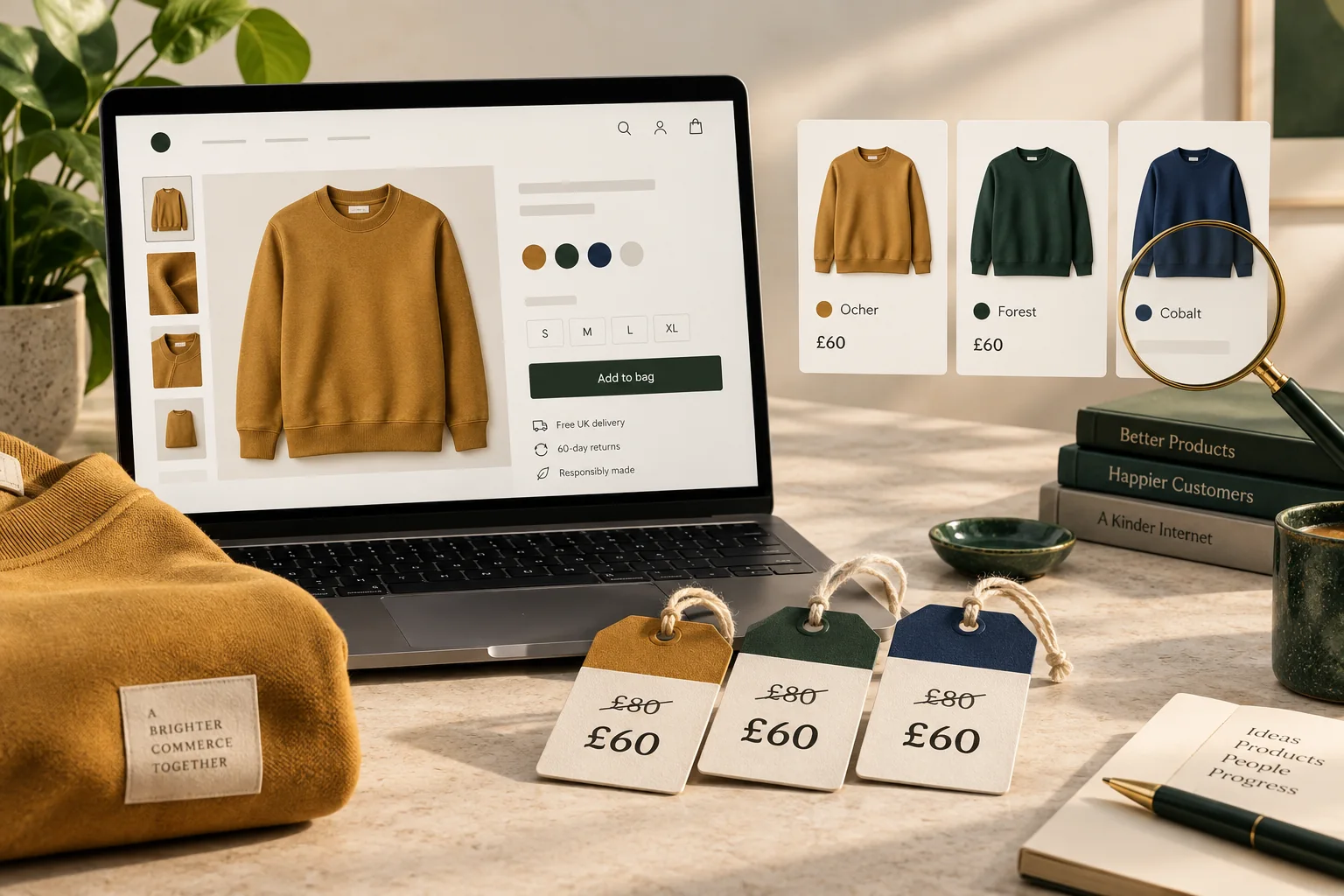
StoreBuilt reviewed Shopify’s sale-price documentation alongside our existing sale-page guidance for this article. The useful distinction is between the price a variant carries, the comparison a product card can honestly show and the discount a customer qualifies for at checkout. Treating those as one setting makes a small display problem surprisingly difficult to diagnose.
A Shopify compare-at price not showing can interrupt a UK promotion even when the underlying selling price is correct. This guide works through the layers in order, with a sample test matrix and a controlled release approach. The examples are illustrative; they do not describe measured client results or establish whether a particular promotional claim is legally appropriate.
In this guide
- First identify the missing element
- Separate a sale price from a checkout discount
- Audit the variants before editing the theme
- Compare collection cards with product pages
- Check the market and customer context
- Work through a mixed-variant example
- Make the smallest reversible correction
- Test the entire customer price journey
- Give campaign expiry the same attention as launch
- StoreBuilt point of view
First identify the missing element
Ask the person reporting the issue for a URL, selected variant, country or market, and screenshot. Record whether the missing element is the crossed-out reference price, a sale badge, a percentage saving or the actual reduced selling price. These are different outputs, and the theme can render each through a different component. A screenshot of the collection grid is not evidence of what the selected variant shows.
Write the expected result in plain language: the navy medium sweatshirt should sell for the approved campaign price, and its product page should display the approved comparison. Avoid starting with a proposed code fix. First establish whether the customer is being charged incorrectly or simply seeing incomplete merchandising information. That distinction determines urgency and the people who need to approve the correction.
Separate a sale price from a checkout discount
Shopify’s sale-pricing documentation explains that compare-at pricing and discounts are separate mechanisms. The comparison must exceed the selling price to represent a sale, while presentation depends on the theme. A discount code does not by itself promise a crossed-out price on every product card.
For an illustrative sweatshirt, an approved £80 comparison and £60 selling price are product pricing values. A further offer entered at checkout is a separate promotion whose eligibility and combinations need their own test. Do not populate a reference price merely to make a badge appear. Obtain the commercial team’s approved values and evidence for the comparison before changing the catalogue. This article addresses implementation, not legal advice.
| What is missing? | Start the investigation here | Evidence to collect |
|---|---|---|
| Reduced selling price | Selected variant and market pricing | Intended and observed amount |
| Crossed-out comparison | Compare-at data and price component | Both stored values |
| Sale badge | Theme badge rules | Product and collection screenshots |
| Discount at checkout | Discount conditions | Eligible basket and applied offer |
| Percentage saving | Calculation and rounding display | Inputs and displayed percentage |
Audit the variants before editing the theme
Export or record the relevant product’s variant prices, preserving empty fields distinctly from zero. Inspect the whole product, not only the first variant. Shopify specifically identifies inconsistent variant comparisons as a cause of collection-page sale information disappearing. A product card summarises a range; a product page can describe the variant currently selected.
Your corrective action should reflect the approved offer. If only certain colours are discounted, keep that commercial distinction and decide how the card should explain it. Do not put every colour on sale to make the grid look consistent. Ask whether a restrained label such as selected options being reduced is more appropriate than an unqualified saving, then verify the wording against the actual range and the theme’s capabilities.
Compare collection cards with product pages
Open the collection grid, the product page, search results and any featured-product section separately. These surfaces often use different presentation paths. Select each relevant variant on the product page and watch both the current price and the reference price. A price that updates while the comparison stays fixed suggests a different investigation from data that is wrong on initial load.
Use a control product with known, approved pricing. If both products fail only in one card component, a shared presentation issue becomes more plausible. If the affected product fails across every surface while the control works, focus first on its data and context. This comparison does not prove the cause on its own, but it gives a developer a much narrower, reproducible problem than “the sale is broken”.
Contact StoreBuilt with a product URL and the expected campaign prices for a focused storefront review.
Check the market and customer context
Record the market and currency used in every test. Shopify notes that fixed market prices can override the ordinary product pricing values. Therefore, seeing the expected pounds price in one UK session does not establish what an international visitor sees. Compare the actual configuration for the affected market with the approved campaign sheet before touching the general product record.
Also separate the public retail journey from any account-specific pricing experience. Keep the same customer state when comparing before and after screenshots. A logged-in wholesale account, a different currency selector or an app-driven offer can change the meaning of the comparison. Make context part of the test name so a later reviewer can repeat it without reconstructing your browser session.
Work through a mixed-variant example
Imagine a UK clothing retailer reducing two seasonal colours while retaining a core colour at full price. The merchandiser checks a reduced variant and sees the expected comparison. The campaign manager checks the collection card and sees no sale badge. Both observations may be accurate because the surfaces are presenting different scopes of the product.
The team should first agree how the mixed offer ought to appear. It might need a clearer collection description, a supported card treatment or a different campaign assortment. Only then should the developer assess a theme change. The wrong response is to copy the reduced price into the core variant to satisfy a visual check. That converts a communication problem into an unintended commercial change.
Make the smallest reversible correction
Preserve the original values and identify who may restore them. For a data issue, update a small approved sample first. For a presentation issue, use a duplicate theme and document which component changes. Avoid installing a pricing app as an investigative shortcut when the native data has not been checked. Another layer can obscure the original cause and complicate the eventual rollback.
Where custom code is needed, scope it to the intended pricing state and market. Consider an undiscounted product, a sold-out option and a product with differing variant prices. A fix that handles only the sample sweatshirt may create misleading badges elsewhere. Review the resulting language as carefully as the arithmetic: the visual promise should remain true when a customer chooses another option.
Test the entire customer price journey
Use a compact matrix instead of random clicking. Include at least one discounted variant, one full-price variant and one control product. Follow the campaign URL through the collection and product page into the basket and checkout. Stop before a real payment unless a test purchase has been expressly approved. Save the observed values, not simply a pass checkbox.
| Test case | Required observation | Reason |
|---|---|---|
| Reduced variant | Correct selling and reference amounts | Validates the main promotion |
| Full-price variant | No misleading saving | Protects mixed ranges |
| Collection card | Wording matches product scope | Prevents blanket claims |
| Mobile option change | Both values update coherently | Covers interactive rendering |
| Checkout basket | Approved payable total | Separates display from charging |
| Campaign end | Intended ordinary pricing restored | Completes the lifecycle |
Give campaign expiry the same attention as launch
Write the removal procedure before the promotion starts. Record which values are temporary, which system owns them and whether an import or connected app can overwrite a manual correction. A spreadsheet that was accurate on launch morning can become stale after another price update. Assign one owner to reconcile the final catalogue state with the current commercial brief.
After expiry, repeat the control journey and inspect campaign links that still receive traffic. A stale badge can remain in an old section even when the product price has been restored. Keep the before-and-after evidence with the campaign record, including exceptions deliberately retained. This makes the next sale safer without requiring the team to repeat the whole diagnosis from memory.
StoreBuilt point of view
A missing sale badge is not a reason to reshape the offer around the theme. The approved commercial promise should lead; data and presentation should make that promise clear. We favour a small reproducible test, an explicit owner for prices and a correction that survives variant changes and campaign expiry.
For wider merchandising work, read our sale-page SEO guide and explore CRO and UX optimisation. Contact StoreBuilt to review a promotion whose storefront display does not match the agreed offer.