
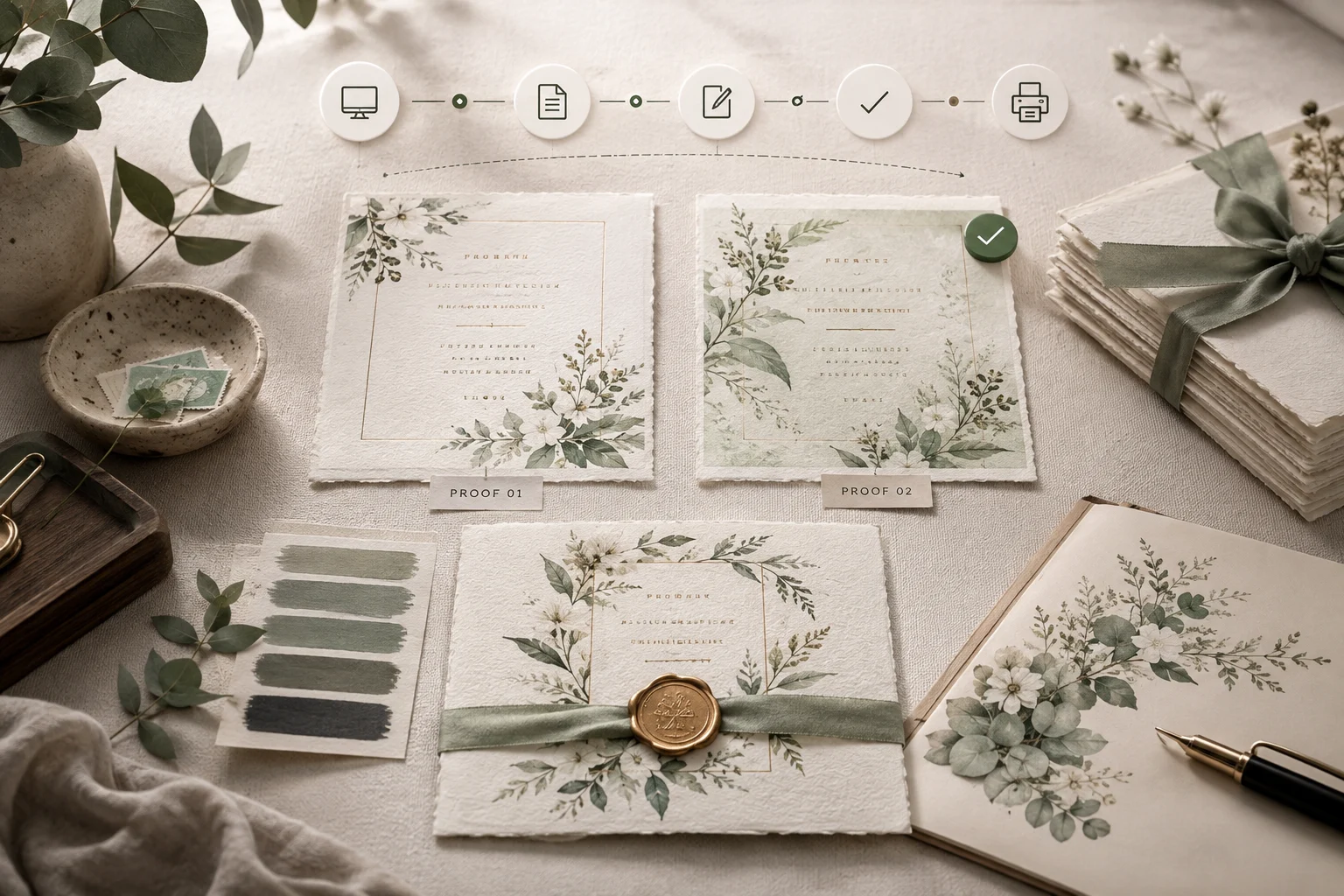
StoreBuilt’s implementation approach separates what a customer selected, what they paid for and what the production team is authorised to make. Personalised products expose why those records matter. A paid order with an attached image is not necessarily a finished production instruction, and a short email saying “looks good” can refer to the wrong revision.
A Shopify proof approval workflow makes that decision explicit. This guide is for UK printers, engravers, stationery brands and other merchants who need customer sign-off before making an item. It addresses the post-purchase approval gate, rather than the product configurator itself. Examples describe illustrative workflows, not verified client results.
Table of contents
- Define the approval record
- Make the proof easy to review
- Separate revisions from decisions
- Design the production gate
- Manage reminders and exceptions
- Evaluate apps and test the handoff
- StoreBuilt point of view
Define the approval record
The primary keyword is Shopify proof approval, with artwork approval workflow and personalised order sign-off as related intents. A practical implementation guide fits this problem better than another broad platform comparison. It supports Shopify integrations and automation by identifying the records and decisions an implementation must preserve.
Begin with a stable connection between the order item and its design. Store an item reference, design version, proof asset, status, decision timestamp and the customer identity or approval-link record used for the decision. Keep the exact approved file available to production. A current preview that can change later is insufficient evidence of what was approved.
For multi-item orders, decide whether approval is independent. A customer ordering invitations and place cards may approve one design while requesting changes to the other. An order-wide tag can be useful for a dashboard, but it should summarise the underlying item states rather than replace them.
| Record | Example purpose | Failure it prevents |
|---|---|---|
| Item reference | identifies the invitation line | approving the wrong product |
| Version identifier | distinguishes proof 2 from proof 1 | obsolete artwork reaching print |
| Decision | approve or request revision | ambiguous free-text response |
| Timestamp | establishes event order | conflicting updates |
| Approved asset | fixed production input | preview changing after approval |
| Release status | confirms readiness checks | payment mistaken for readiness |
Before choosing software, list who can create proofs, who can change customer decisions and who can release production. Staff overrides should require a reason and remain visible. An emergency should not erase the original customer response or obscure which file was used.
Contact StoreBuilt to map the approval and production handoff before automating it.
Make the proof easy to review
Show enough information for a meaningful decision. Include the actual personalisation text, layout, size and chosen options. If the visual is an approximation of physical colour or material, explain that limitation clearly. Do not present a screen preview as a guarantee of exact print colour.
Provide separate actions for approval and requesting a change. A revision request should make it easy to identify the relevant text or design area. For a multi-page or multi-item proof, ensure the customer can review every part before the interface invites a final decision.
Test on a phone. Fine typography, small dimensions and narrow previews can make mistakes hard to spot. Offer zoom or a suitable download without losing the connection to the approval action. Confirm that the customer can return from the enlarged view and still see which version they are reviewing.
Tell the customer what approval means operationally and when the production lead time begins. The wording should match approved commercial terms. Proof approval should not be described as removing all customer rights; obtain appropriate advice for your products and sales model instead of improvising blanket disclaimers.
Separate revisions from decisions
Every material design change should create a new version with its own review state. Do not alter an already approved file in place. If the customer requests a spelling correction after approval, move the affected item back into review and ensure production sees the interruption.
Old links need deliberate handling. A superseded proof can remain visible as history, but its approval control should be disabled or route to the current version. If a delayed email delivers an old link, the customer must not unknowingly approve outdated artwork.
Consider an illustrative wedding stationery order. The customer approves invitation version two but asks to change a date on the place cards. Production can see one ready item and one blocked item. When the place-card proof changes, only that item returns to the customer. This is more precise than repeatedly marking the whole order “approved” and “not approved”.
Keep revision comments attached to the version they describe. A comment such as “move this down” loses meaning when separated from the image. Preserve before-and-after context so another member of staff can continue the job without reconstructing a long inbox conversation.
Design the production gate
Approval is one requirement, not the only requirement. A production release may also depend on payment status, stock or material availability, address completeness and a feasible dispatch date. Define these conditions explicitly and decide which system owns the release decision.
A useful state sequence is awaiting input, proof in preparation, awaiting review, revision requested, approved, ready for production and released. Avoid compressing “approved” and “released” into the same state when other checks remain. Staff should be able to explain why an approved design is still waiting.
| Condition | Gate behaviour | Owner |
|---|---|---|
| Current proof approved | design condition satisfied | customer service/design |
| Balance outstanding | hold financial release | finance/support |
| Material unavailable | review lead time | production planning |
| Order cancelled | prevent release | order management |
| New revision requested | withdraw readiness | design team |
| All conditions met | send fixed production package | production owner |
Automation must tolerate duplicate and delayed events. Repeated approval notifications should not create two production jobs. An older approval event arriving after a revision request should not reopen the gate. Use version checks, a unique release reference and a recoverable error queue.
The production package should include the approved file, item reference, quantity, material and relevant instructions. Confirm the receiving system acknowledges it. A Shopify tag changing successfully does not prove that the workshop received the correct asset or stopped an obsolete job.
Manage reminders and exceptions
Set reminders around the actual delivery promise. Tell customers when a delayed response may move the dispatch date. Avoid repeated generic messages that do not identify the item or current proof. Support needs a queue showing time waiting, latest contact and the next action.
Do not treat silence as a reliable approval. If a customer never responds, follow a defined hold, contact or cancellation process consistent with the agreed terms. A busy production calendar is not evidence that an unreviewed design is correct.
Handle failed emails, inaccessible links and customers who cannot use the portal. Staff-assisted approval can be an exception path, provided the customer decision, exact version and reason are recorded. Restrict access to personal artwork and define retention with the responsible privacy owner, especially where designs include personal photographs or sensitive details.
Evaluate apps and test the handoff
Current Shopify App Store listings such as Proofed and Proofello describe proof review and revision workflows. These listings demonstrate available solution types, not StoreBuilt-tested recommendations. Validate current features, permissions, data export and fit against your own order model.
Ask vendors to demonstrate a two-item order, a superseded proof and a cancelled order. Check whether data can be exported if the app is removed. Review email branding, link security, file access and integration behaviour alongside the visual editor. The best-looking proof screen may still leave the production gate unresolved.
Before launch, run routine approval, revision, partial approval, duplicate click, old-link approval, payment failure and cancellation cases. Inspect both Shopify and the production queue. Reconcile the approved asset byte-for-byte or through a stable file identifier where your workflow supports it.
Measure time awaiting review separately from time spent preparing artwork and time in production. Track revision counts, jobs released with incomplete information and reprints caused by version confusion. A faster approval average is not valuable if it hides more production errors. Shopify support and audits can help maintain these controls as the workflow changes.
StoreBuilt point of view
StoreBuilt’s view is that proofing is a decision record, not simply an email attachment. Make the exact design, item and approval visible, then connect them to a controlled production release. That gives customers a clear choice and gives the workshop an instruction it can trust.
Contact StoreBuilt to build a proof-to-production workflow around your real order process.