
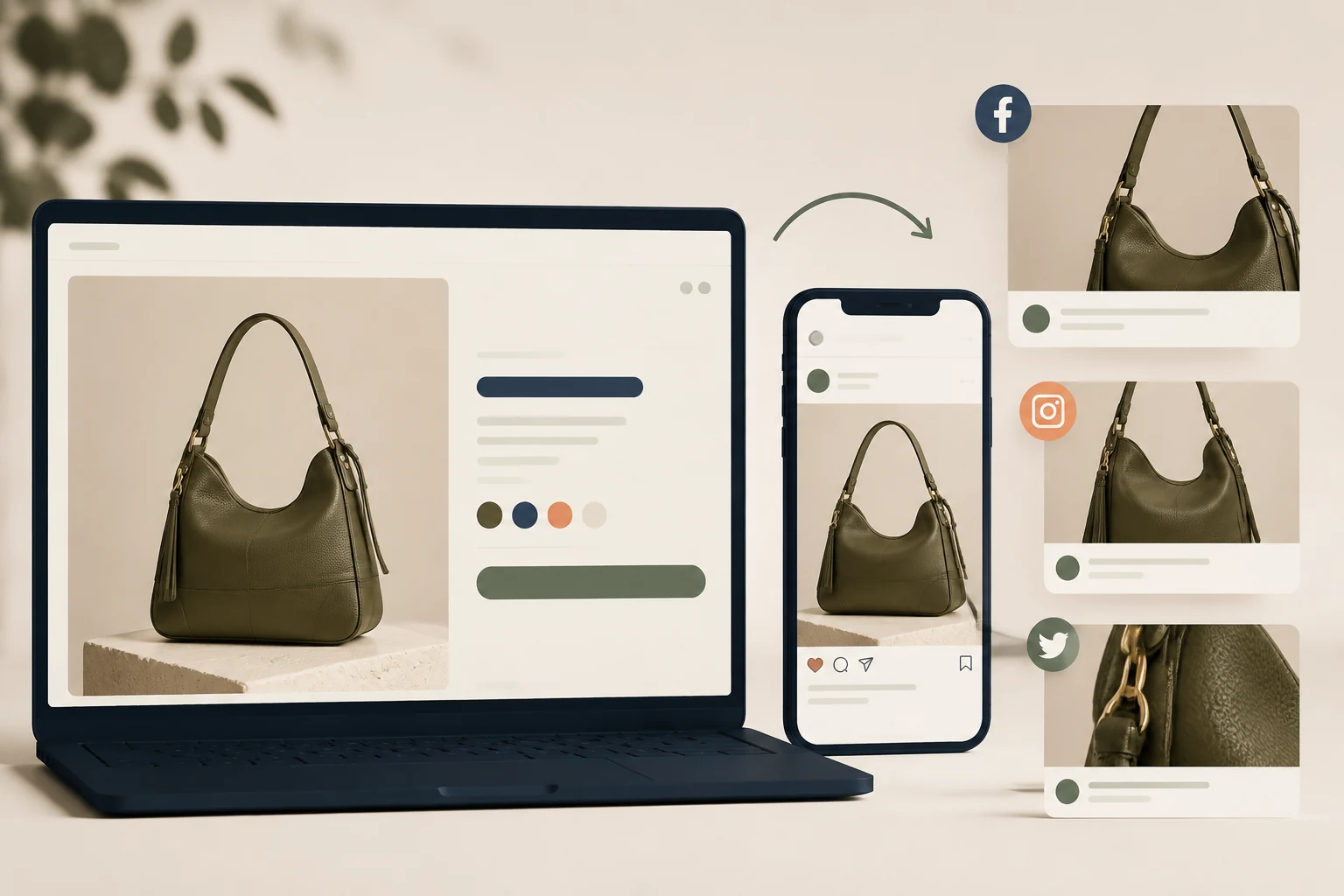
StoreBuilt reviewed Shopify’s social-sharing image guidance for this article. The key operational lesson is that a product page, the homepage and a social platform’s saved preview are separate things to inspect. Changing a theme image is not proof that the next shared link will display it.
A wrong Shopify social sharing image can make a UK ecommerce campaign look unfinished before the customer visits the store. The solution is a repeatable preview check that identifies the source of the mismatch. The worked example below is illustrative and does not report a client campaign result.
Contact StoreBuilt to review link-preview behaviour before a launch.
Table of contents
- Start with the exact link being shared
- Separate page metadata from platform rendering
- Design artwork that survives different crops
- Work through a handbag launch example
- Use a platform-specific release checklist
- Keep preview fixes maintainable
- StoreBuilt point of view
Start with the exact link being shared
Copy the complete link from the planned campaign, including any tracking parameters or redirecting short URL. Open it and record the final destination. Two colleagues can think they are testing the same product while actually using different links and looking at different cached previews.
Identify the page type. A homepage fallback, a product image, a collection cover and an article image serve different purposes. The expected preview should match the destination the customer will reach, rather than merely use the latest image uploaded somewhere in the admin.
Write the intended title, image and destination in a small approval record. This makes the check concrete. “The preview looks wrong” becomes “This product link should show the olive handbag, but the platform displays last season’s homepage artwork.”
Test an ordinary browser visit as well. If the destination redirects unexpectedly, is unavailable, or displays the wrong product, fix that underlying issue before tuning metadata. A polished preview cannot compensate for a mismatched landing page.
Separate page metadata from platform rendering
Shopify’s social image guidance explains sharing image choices and points to platform preview tools. Use it to understand the store configuration, then inspect what the published theme actually outputs for the affected URL.
Look at the page’s social metadata, including the image and title references. Check for conflicting duplicate tags introduced by theme customisation or apps. A visible image on the page is not necessarily the image offered to a social crawler.
| Layer | Question | Evidence |
|---|---|---|
| Shared link | Where does it finish? | final destination URL |
| Page context | Which product or content is this? | matching page title |
| Social metadata | Which image is declared? | published HTML |
| Image asset | Can it be retrieved? | successful image response |
| Platform preview | What does this platform display? | dated inspection result |
| Existing post | Has its saved card changed? | separate post check |
If several layers disagree, work from the destination outward. Correct the source page before repeatedly asking a platform to refresh. Otherwise the refresh may simply fetch the same incorrect metadata again.
For wider metadata governance, connect the fix to Shopify SEO and AI search readiness. Keep the goals distinct: correct link cards improve sharing clarity, while search indexing and ranking require their own evidence.
Design artwork that survives different crops
Use one recognisable subject and enough margin around it to survive common preview crops. A product photographed against a clean background is easier to adapt than a busy collage with small text near every edge. Judge the result at the size people actually see in a feed or message.
Avoid making a temporary discount the only meaningful content in a long-lived preview image. If the offer ends while the link remains in old messages, the card can become misleading. A campaign-specific landing page can carry time-bound creative when the business has a clear retirement process.
Keep product identity consistent with the destination. A lifestyle shot can be appropriate, but a card showing three items should not imply that all three are included when the link sells only one. Preview design is part of expectation setting, not just a branding exercise.
Review contrast, subject scale and text legibility on a phone. When text is necessary, use a short message that remains understandable if the platform trims part of the composition. Do not rely on the image to communicate essential purchase terms that also belong on the page.
Work through a handbag launch example
Imagine a merchant launching an olive handbag with a dedicated product URL. The marketing team updates the homepage sharing image, but a product link pasted into a messaging app still shows a tan bag. This is an illustrative diagnosis, not an observed StoreBuilt client result.
First confirm whether the product page’s declared social image still points to the tan photograph. If it does, the problem is in page metadata or its source data. Requesting a platform refresh before changing that reference will not establish the intended new preview.
If the published metadata already names the olive image, open that image URL directly and check the response. Then inspect the exact product link in the platform’s supported tool. A stale cached card becomes a plausible explanation only after the source and asset checks pass.
Finally compare a newly created preview with an existing post or message. They may behave differently. Record the platform and time of each observation, and tell the campaign owner exactly which surface is verified rather than declaring every historical share fixed.
Use a platform-specific release checklist
Choose the sharing surfaces that matter to the campaign. A business-to-business launch may prioritise LinkedIn; a consumer product launch may rely on messaging and social feeds. The required list should come from the campaign plan, not an attempt to test every platform on the internet.
| Test case | What to check | Approval note |
|---|---|---|
| Homepage link | current brand image | no expired campaign |
| Product link | correct item and title | matches landing page |
| Collection link | category representation | no unrelated product promise |
| Article link | relevant cover and headline | legible at small size |
| Tracked campaign link | redirect and preview | correct final destination |
| Existing shared card | cache behaviour | verified separately |
Use platform inspection tools where available and a private preview where appropriate. Testing does not require publishing a public post. Avoid treating an internal mockup as proof of what an external platform will display.
Save the tested URL, expected asset and observed result with campaign approval. If a colleague later changes the product’s featured image, the team can identify whether the approved card needs another check. This is particularly useful when product photography and marketing are managed by different people.
Keep preview fixes maintainable
Document where each page type gets its sharing image. That might be a theme setting, a product image, article data or custom metadata. The exact source depends on the implementation; make it visible to editors so they can update the right field deliberately.
Assign a fallback image that still makes sense when page-specific artwork is absent. Test missing and unusually shaped source images. A fallback should preserve brand clarity without concealing a content problem that editors need to correct.
Review app and theme changes for duplicate or conflicting metadata. Keep one clear ownership model for the output rather than allowing several tools to compete. A fix that removes one wrong image today can recur if nobody knows which integration controls the tags tomorrow.
Measure useful outcomes separately. Preview correctness is a release check. Campaign click-through can be monitored later with appropriate context. Google indexing is another process entirely. Do not interpret a refreshed social card as proof that search engines have indexed or reprioritised the page.
StoreBuilt point of view
A link preview is the storefront’s first impression in someone else’s interface. The strongest workflow checks that impression from the exact link through the declared asset to the platform’s actual rendering.
We would make preview approval part of the campaign checklist and keep the evidence small: URL, image, platform and date. That is enough to prevent repeated guesswork without turning a simple merchandising change into a complicated reporting exercise.
Contact StoreBuilt for a Shopify metadata and campaign-preview review.