
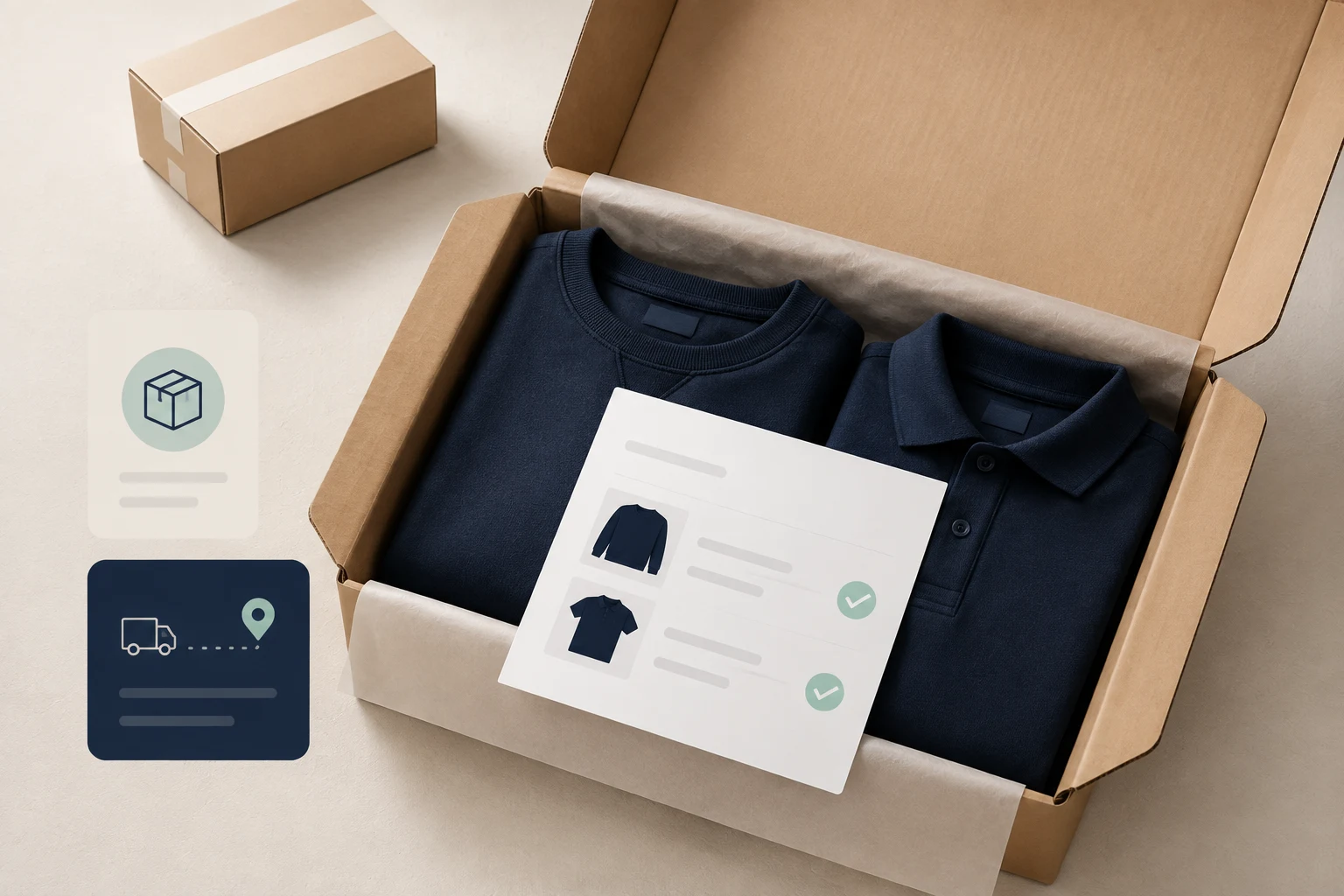
StoreBuilt reviewed Shopify’s packing-slip guidance while preparing this article. The central distinction is practical: the document describes a package, while the order can contain items that are travelling separately. That difference should shape every layout and quantity decision.
Shopify packing slip customisation is useful when the default printout leaves staff searching for the detail that distinguishes two similar items. For a UK ecommerce warehouse, legibility, shipment accuracy and repeatable printing matter more than decorative branding. This guide covers the acceptance process; all worked scenarios are illustrative.
Contact StoreBuilt to scope the changes and acceptance checks for your store.
Table of contents
- Give the document one clear job
- Prioritise identifiers and shipment quantities
- Decide what custom information belongs
- Work through a split-parcel example
- Print the difficult cases
- Make rollout and reprints predictable
- StoreBuilt point of view
Give the document one clear job
Decide whether the document supports picking, packing, the customer’s parcel check, or several of those jobs. A pick list can need a storage location; the customer usually needs a recognisable product description and the quantity included. Combining everything on one sheet can make the essential information harder to find.
Shopify describes packing slips as shipment documents containing item and address details, and supports customising the template. Start by preserving a copy of the current template and a representative printed example before changing it.
Ask warehouse staff which detail they use to distinguish products at the bench. Marketing names can be too similar, photographs can be tiny, and abbreviations can mean different things to different teams. The chosen identifier must map reliably to the physical item.
Keep invoice and shipping-label requirements separate. A packing slip should not be assumed to replace a tax invoice, carrier label or customs document. If a process requires those documents, identify the responsible system and check its output independently. This avoids stretching one template beyond its purpose.
Prioritise identifiers and shipment quantities
Use a clear hierarchy: order reference, recipient information, shipment contents and any instruction needed to pack correctly. Put secondary brand copy below that operational information. A warehouse colleague should not have to scan a promotional paragraph to find the variant.
| Field | Why it matters | Layout decision |
|---|---|---|
| Order reference | connects parcel to support record | prominent and readable |
| Product and variant | distinguishes similar items | allow useful wrapping |
| SKU | supports physical identification | avoid tiny type |
| Shipment quantity | tells staff what belongs here | separate visual column |
| Approved custom option | identifies requested configuration | show beside relevant item |
| Package note | handles an exceptional instruction | visibly separated |
For partial fulfilment, confirm that the printed quantity represents this shipment. Do not copy an order-level quantity into a shipment document without testing the result. A customer who ordered three units might be receiving only one in the first parcel.
Use plain column labels. If the document includes both ordered and included quantities, make the difference explicit. Staff and customers should not need to infer whether “Qty” means the full purchase, the amount already shipped or the contents of the box in front of them.
Decide what custom information belongs
List the custom options that actually affect packing. An engraving value, chosen fitting or fabric option may need to appear. Internal app identifiers, duplicated configuration strings and unnecessary customer notes can crowd the page without helping anyone. Approve fields deliberately instead of printing every available property.
Give long text a safe layout. A personalised message can be several lines, include punctuation or contain characters outside the standard English alphabet. Test wrapping and page breaks so it cannot overlap the next item’s quantity. Avoid shrinking every row just to fit the longest possible message.
Distinguish a customer’s request from an instruction that operations has accepted. “Please deliver before Friday” is not automatically a confirmed carrier promise. A packing document should not create a commitment the checkout and fulfilment process did not authorise.
For stores with several packing systems, trace which one actually produces the paper. A change in Shopify’s template will not necessarily affect a third-party warehouse application’s printout. Our Shopify development team can help map the relevant document path before template work starts.
Work through a split-parcel example
Imagine a UK homewares order containing two mugs and one large vase. The mugs leave the main warehouse today; the vase leaves a specialist packing location tomorrow. This is an illustrative scenario designed to expose document ambiguity, not a reported StoreBuilt client result.
The first slip should identify the two mugs in that parcel. If the vase appears, it needs a clearly distinct status that cannot be mistaken for an item the packer has forgotten. Whether to show outstanding items at all should be an explicit operational choice.
Now imagine one mug is replaced before despatch. The team needs to know when the slip was generated and whether it reflects the latest accepted order state. Establish a rule for invalidating old printouts when contents change. Leaving two apparently valid slips at the packing bench creates avoidable uncertainty.
Finally, consider the customer opening the parcel. The document should help them understand what arrived without exposing internal jargon. For the broader communication policy around separate deliveries, use our split-shipment customer experience guide. The packing-slip review is the physical-document part of that larger journey.
Print the difficult cases
A screen preview is a useful first check, but the actual printer determines whether the document is usable. Paper size, margins, print scaling and ink quality can make a clean design fail at the bench. Print on the equipment and settings staff use during normal fulfilment.
| Test order | What to inspect | Acceptance evidence |
|---|---|---|
| One simple item | hierarchy and whitespace | readable physical sheet |
| Many distinct lines | page breaks and repeated context | no orphan quantities |
| Long variant name | wrapping near SKU and quantity | no overlap or truncation |
| Partial shipment | included versus ordered amount | matches actual parcel |
| Customised item | option value next to right line | correct configuration visible |
| Reprinted order | latest accepted contents | obsolete copy distinguishable by process |
Test black-and-white output even when the brand palette is colourful. A pale accent can disappear on economical print settings. Avoid using colour as the only way to indicate an important instruction or an item that is not in the shipment.
Ask a colleague who did not design the template to pack a controlled sample using it. Observe where they pause or ask a question. That small practical exercise reveals more than a designer checking whether the logo looks centred on a laptop.
Make rollout and reprints predictable
Keep the initial change small enough to reverse quickly. Save the previous template, name the revision and record who approved the printed examples. Apply it outside the busiest packing period so staff can report an unexpected wrap or missing field before many parcels leave.
Check each document producer separately. Shopify admin, a warehouse app and a bulk-print workflow may use different templates or data. A successful test of one route should not be reported as proof that every warehouse printout has changed. Record the route beside each sample.
Agree a reprint rule that does not accidentally trigger duplicate fulfilment. The printed document supports the order workflow; printing another copy should not be treated as evidence that a second parcel is required. Staff need a clear way to resolve an extra or outdated sheet.
Measure packer questions, document-related mistakes and reprint causes over a defined review period. Classify the causes before redesigning again. Bad product names, stale orders and printer settings can look like template problems but need different fixes. Bring the findings into regular warehouse training rather than leaving them as informal comments.
StoreBuilt point of view
A successful packing slip is almost unremarkable: the correct person can identify the correct contents quickly, even on a busy shift. We would spend the design budget on hard-to-read variants, partial shipments and page breaks before adding brand flourishes.
The most useful sign-off is a physical parcel and its matching printed sheet, reviewed together by someone who packs orders. Treat that as the acceptance artifact. It turns a subjective design discussion into a concrete question about whether the paper helps the team send the right items.
Contact StoreBuilt for a focused implementation review.