
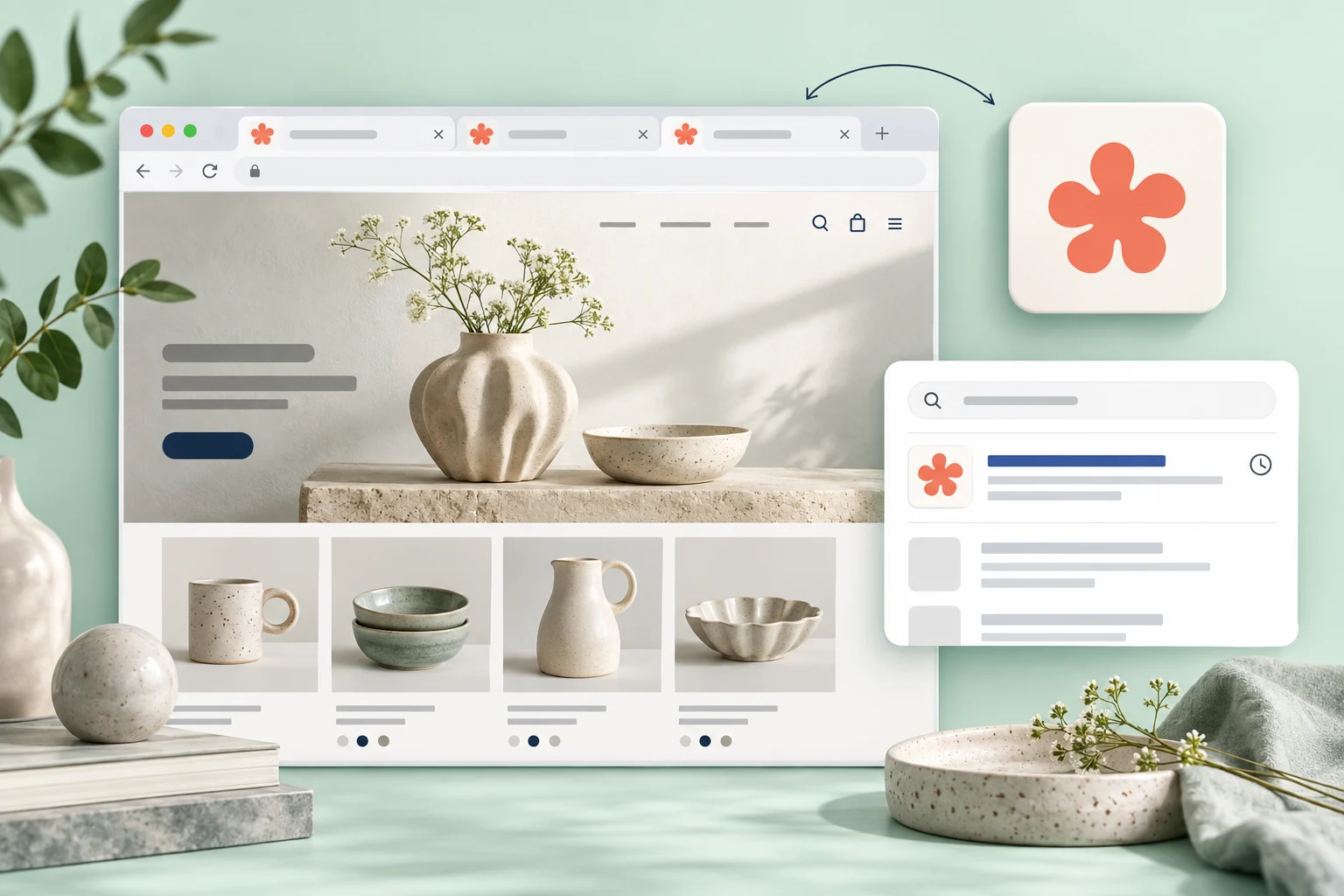
StoreBuilt checked both Shopify’s favicon guidance and Google’s current search documentation for this article. The important distinction is between the asset saved in the theme, the icon served by the live page and the icon Google has processed. Those can temporarily differ without all three systems being broken.
A Shopify favicon not updating is easy to misdiagnose because the image is small and heavily associated with brand recognition. A UK retailer may see its new mark in one browser while a colleague still sees an old logo in search. Start by naming the surface that is wrong before uploading another version.
Contact StoreBuilt with the live hostname and the surface showing the incorrect icon.
Table of contents
- Identify which brand asset you are checking
- Inspect the published theme first
- Follow the image URL to the delivered asset
- Test browser state without changing the site repeatedly
- Check Google’s current eligibility requirements
- Design the mark for its actual viewing size
- An illustrative rebrand investigation
- Create a verification record for the handover
- StoreBuilt point of view
Identify which brand asset you are checking
A browser-tab icon, a search-result favicon, a social sharing image and a checkout brand mark are different surfaces. They may use related artwork, but one upload does not establish that every surface has been updated. Include a screenshot of the exact problem in the brief.
Record the hostname as well as the page path. The www version and a separate subdomain can have different implementations. A screenshot that hides the address bar makes it harder to distinguish an old domain from a stale icon on the correct domain.
Before making a change, compare the current asset against the approved brand file. Sometimes the issue is not caching: an exported icon contains too much empty space or a thin detail that disappears at small sizes. A technically valid file can still be visually ineffective.
Inspect the published theme first
Confirm which theme is live and where its favicon setting is configured. A merchant can upload an icon to a draft theme, preview the design and then expect the published shop to change. Keep the theme name and publication status in the change record to prevent that confusion.
Shopify’s favicon setup guide explains adding the icon and notes that the theme editor does not show the live storefront favicon. Open the public store in its own tab. The icon representing the Shopify admin is not evidence about the shop’s customer-facing asset.
After saving, ask a developer to inspect the icon declaration in the published page when the result remains unclear. Identify the actual image URL being served. Checking the uploaded original alone misses any resizing or alternate reference applied by the theme.
Follow the image URL to the delivered asset
Open the declared icon URL directly and confirm that it returns the intended image. Check its dimensions, format and visual contents. If the URL points to an old file, focus on the declaration or setting. If the URL is correct but the image itself is wrong, focus on the asset.
Look for competing icon declarations introduced by previous customisations or apps. Do not add another declaration as a reflex. A clean implementation should make it clear which assets are intended for which supported surface. Preserve useful existing declarations and remove conflicts only after their purpose is understood.
| Observation | Likely investigation | Proof to collect |
|---|---|---|
| Draft theme has the new icon | publication context | live theme and preview comparison |
| Declared URL serves old artwork | setting or asset reference | direct image result |
| Correct artwork looks tiny | internal padding and visual detail | small-size rendering |
| Fresh browser works, old tab differs | browser state | controlled browser comparison |
| Browser works, search differs | crawl and search processing | homepage declaration and search capture |
Do not confuse a successful image request with successful search appearance. It proves that the file can be retrieved in that test. It does not prove that Google has fetched it, selected it or replaced a previously stored result.
Test browser state without changing the site repeatedly
Compare the live shop in a fresh browser session and, where practical, a second browser. Close old tabs before testing again. Record whether the issue is confined to one profile or appears consistently across clean sessions. That scope changes the next sensible action.
Avoid cycling through several filenames, formats and theme settings in a single session. If the icon eventually appears, you will not know which change mattered. Make one justified edit, record the served URL and test it before considering another adjustment.
A hard refresh can be a useful observation, but it is not a publication strategy. Customers will not all clear their local caches on request. The merchant’s responsibility is to serve a coherent final asset; browser state should be investigated separately when the live implementation is already correct.
Check Google’s current eligibility requirements
Google’s favicon documentation requires a crawlable homepage and icon, a square image and a stable URL. It currently specifies a minimum of 8 by 8 pixels and recommends larger than 48 by 48. Verify the image actually referenced by the published page rather than assuming the uploaded source is what Google receives.
The same documentation explains that Google uses one favicon per hostname and does not guarantee display. It can take days or weeks to recrawl and process a change. These are search-system boundaries, not reasons to keep editing a technically correct theme every morning.
If the asset or homepage is blocked from crawling, fix the specific restriction with the person responsible for SEO and infrastructure. Do not broadly remove access controls from unrelated pages. The question is whether the public homepage and intended icon are available to the appropriate crawlers.
Design the mark for its actual viewing size
Review the icon at a small size on light and dark browser chrome. Fine lettering, narrow outlines and large transparent margins can make a recognisable full-size logo unreadable in a tab. A simplified brand symbol often communicates more clearly than a compressed horizontal wordmark.
Keep the icon recognisably connected to the store’s approved identity. This is not a reason to invent a new logo during technical troubleshooting. Ask the brand owner to approve a small-format version when the existing artwork cannot survive reduction cleanly.
Compare the visible mark rather than only the canvas dimensions. Two square files can have the same pixel size but very different usable artwork areas. If one contains extensive padding, it may look smaller even though its technical dimensions match the other.
An illustrative rebrand investigation
Imagine a UK stationery shop that changes its brand symbol before launching new packaging. The public browser tab shows the new symbol, but a Google result still displays the previous icon. The team considers replacing the theme because another upload appears to have made no difference.
A controlled review finds the intended icon in the live homepage declaration and confirms that the image URL serves the approved artwork. The next step is crawl verification and a recorded search follow-up, rather than another theme replacement. The team also checks that it is searching the same hostname it tested.
This scenario is illustrative, not a claimed StoreBuilt client result. It shows why search appearance should not be used as the sole immediate acceptance test for a favicon release. The implementation and the search system need separate evidence.
Create a verification record for the handover
Keep a compact record that another person can repeat. Include the approved image, live theme, declared URL, image dimensions and browser observations. If Search Console is available, record what homepage inspection shows and whether a recrawl was requested. Do not report a request as completed indexing.
| Verification layer | Acceptance evidence | What it does not establish |
|---|---|---|
| Asset | approved artwork and dimensions | correct theme reference |
| Published page | intended icon declaration | browser cache refresh |
| Browser | correct icon in a clean session | Google search processing |
| Crawl access | public homepage and image available | guaranteed search display |
| Search observation | correct icon on checked result | every query and device updated |
After the implementation passes, schedule a sensible follow-up rather than continually changing the URL. Record the date and query used for any search screenshot. Search appearance can vary, so a precise observation is more useful than a broad claim that Google has “fixed everything”.
StoreBuilt point of view
A favicon problem should be solved at the layer where the evidence points. StoreBuilt would first verify the live declaration and delivered asset, then assess browser and search behaviour separately. The outcome should be a clear, stable brand mark with an understandable handover, not a sequence of unexplained uploads.
Explore Shopify SEO and AI-search readiness or Contact StoreBuilt for a focused storefront and search-appearance review.